> ## Documentation Index
> Fetch the complete documentation index at: https://docs.dexdata.ai/llms.txt
> Use this file to discover all available pages before exploring further.
# Messaging
> Connect Dex to Slack or use Dex directly from chat.
Dex currently supports Slack for messaging. Only workspace owners can install Dex on Slack.
## Connect Slack
You can start the Slack connection in three places:
Connect Slack while you are setting up Dex for the first time.
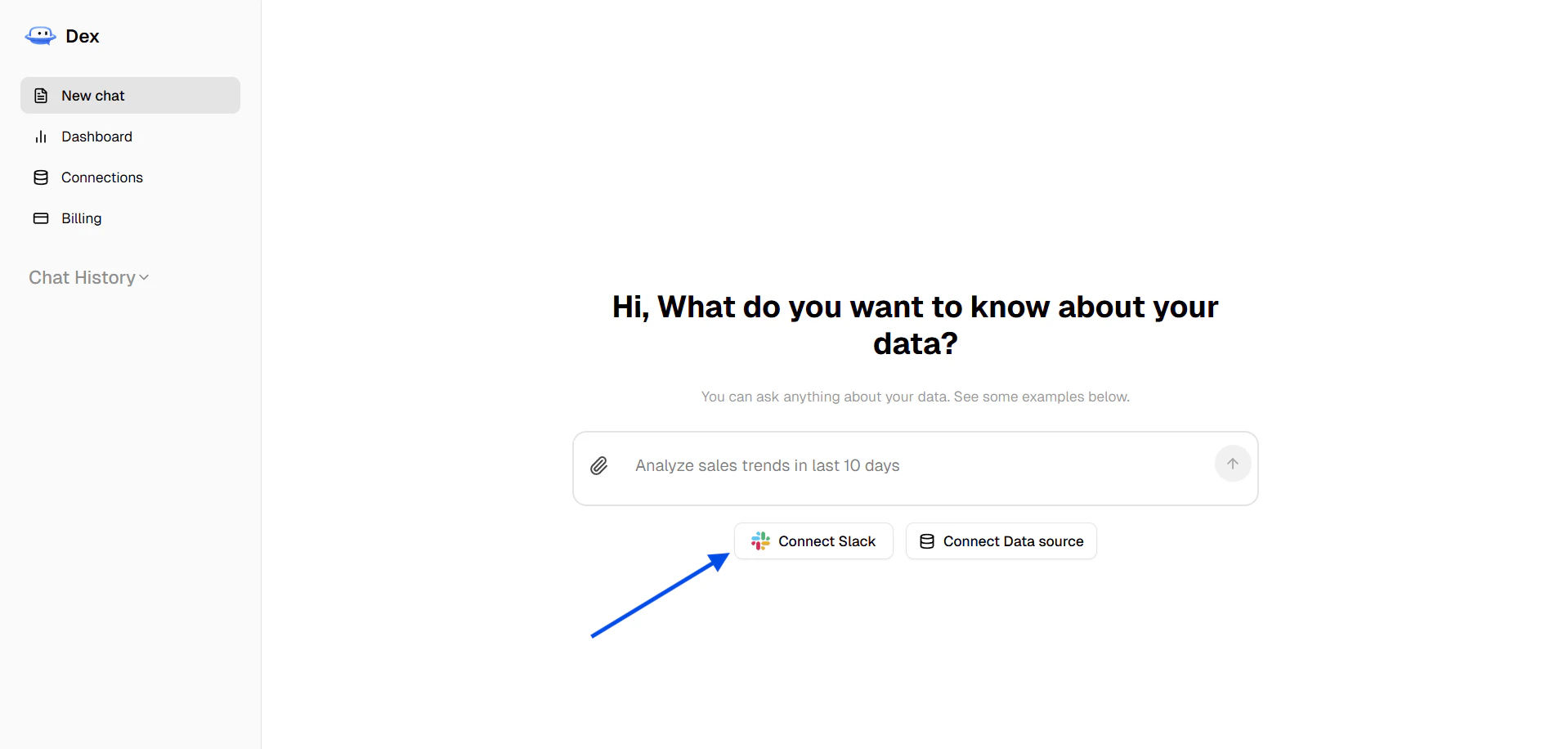
Click **Connect Slack** from the chat screen to start the setup flow.
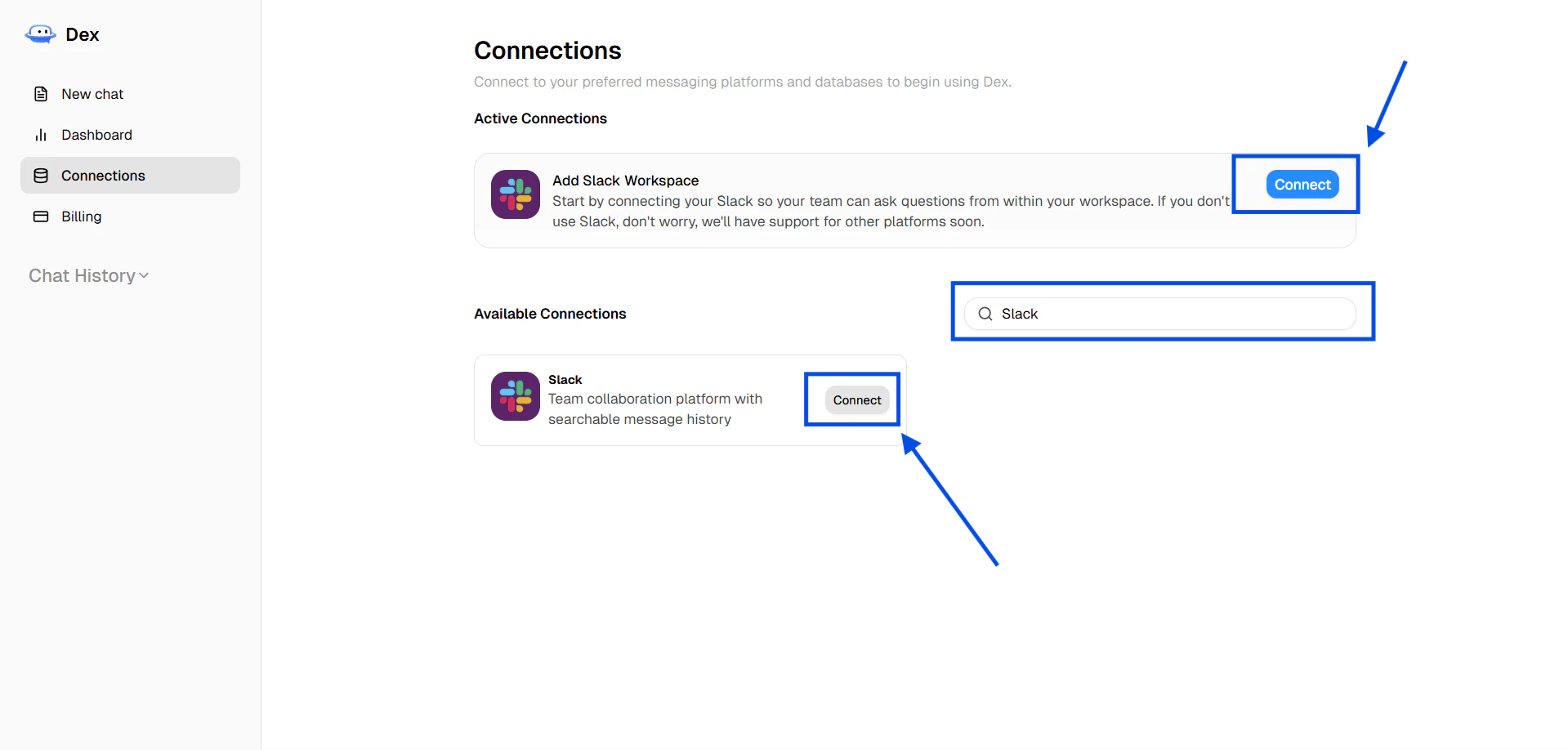
 Open **Connections**, search for Slack, or scroll to Slack and click **Connect**. You can also use the Slack banner if it appears at the top of the page.
 If you do not see Slack yet, ask a workspace owner to install it for you.