> ## Documentation Index
> Fetch the complete documentation index at: https://docs.dexdata.ai/llms.txt
> Use this file to discover all available pages before exploring further.
# Settings
> Manage account, organization, and insight settings from one place.
The Settings page is organized around the same tabs you see in the app: **Account Settings**, **Organization Settings**, and **Configuration Settings**.
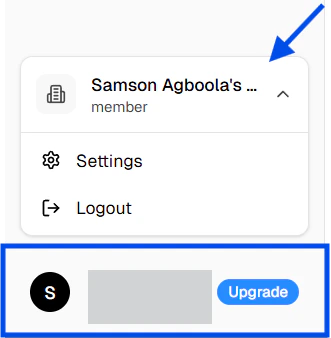
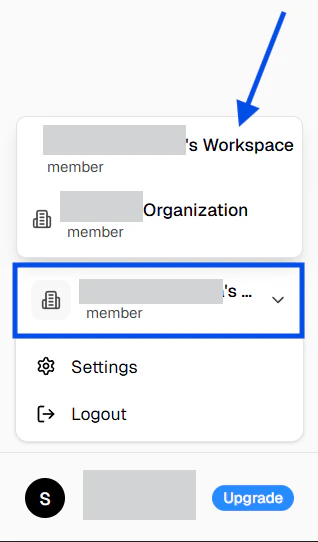
If you belong to more than one organization, switch the active organization from the sidebar settings menu before opening this page. The selector shows the current organization name and role, and changing it updates the selected organization for the rest of the app.
 ## Organization switching
Users who belong to multiple organizations should treat the sidebar organization selector as the source of truth.
* Open the settings menu from your profile in the sidebar.
* Choose the organization you want to work in from the dropdown.
* The app updates the selected organization and refreshes permissions for that organization.
## Organization switching
Users who belong to multiple organizations should treat the sidebar organization selector as the source of truth.
* Open the settings menu from your profile in the sidebar.
* Choose the organization you want to work in from the dropdown.
* The app updates the selected organization and refreshes permissions for that organization.
 This matters because the Settings page is organization-aware. Team members, invitations, and insight preferences all load for the currently selected organization.
## Tabs
The page uses a tabbed layout driven by the `tab` query parameter.
* `account` opens **Account Settings**.
* `organization` opens **Organization Settings**.
* `configuration` opens **Configuration Settings**.
If no tab is provided, the page defaults to **Account Settings**.
## Account Settings
This tab contains your personal account actions.
### Personal Information
This matters because the Settings page is organization-aware. Team members, invitations, and insight preferences all load for the currently selected organization.
## Tabs
The page uses a tabbed layout driven by the `tab` query parameter.
* `account` opens **Account Settings**.
* `organization` opens **Organization Settings**.
* `configuration` opens **Configuration Settings**.
If no tab is provided, the page defaults to **Account Settings**.
## Account Settings
This tab contains your personal account actions.
### Personal Information
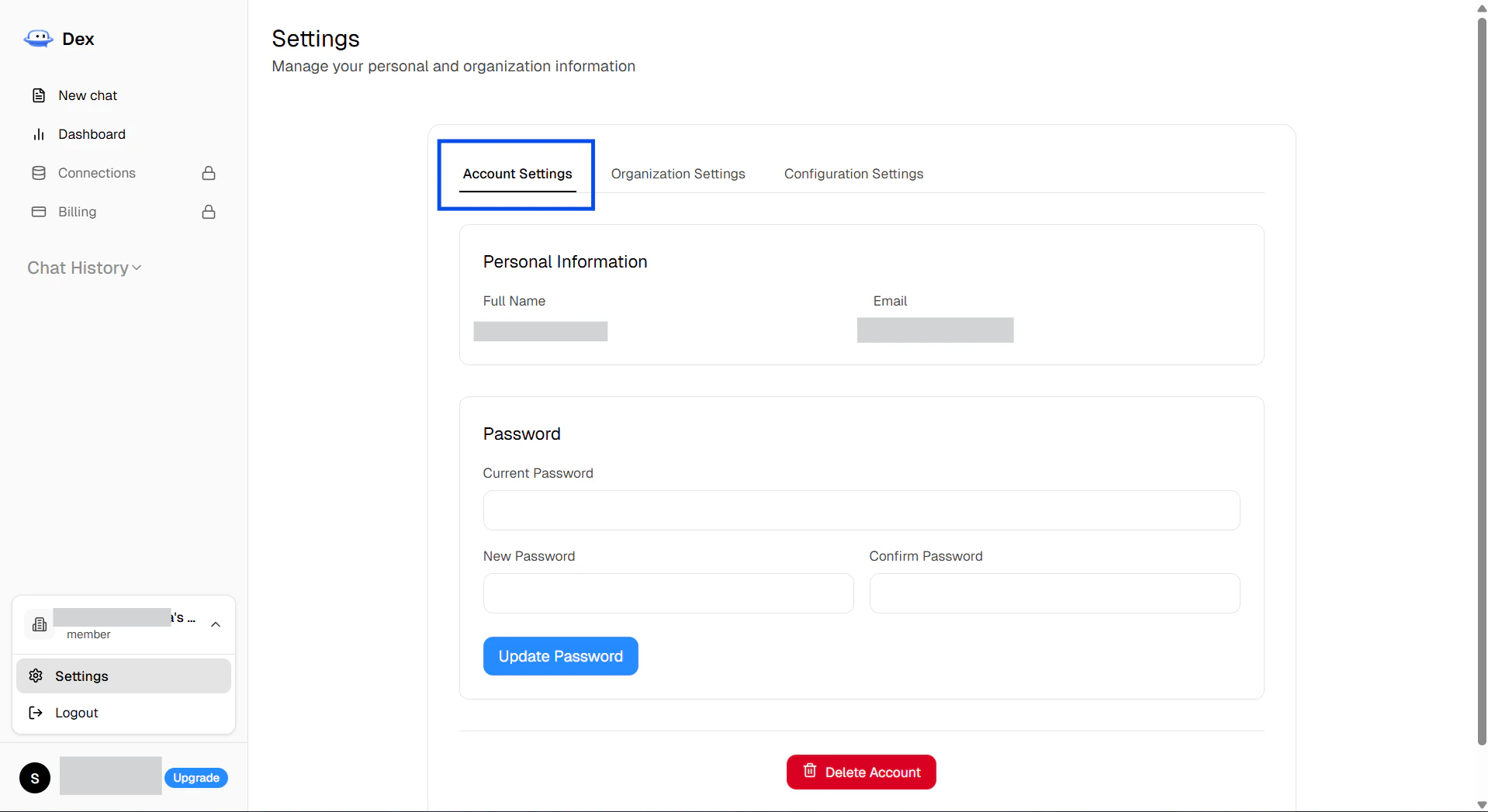 Shows your full name and email address.
### Password
Use this form to update your password.
* **Current Password** is required.
* **New Password** must be at least 8 characters.
* **Confirm Password** must match the new password.
When the update succeeds, the form resets and the page shows a success toast.
### Delete Account
The delete flow depends on how many organizations you own.
* If you do not own any organizations, the account can be deleted immediately.
* If you own one organization and you are the only member, the flow offers **Delete Account & Organizations**.
* If you own organizations with other members, the flow offers **Remove All & Delete Account**.
## Organization Settings
This tab is only editable for organization admins.
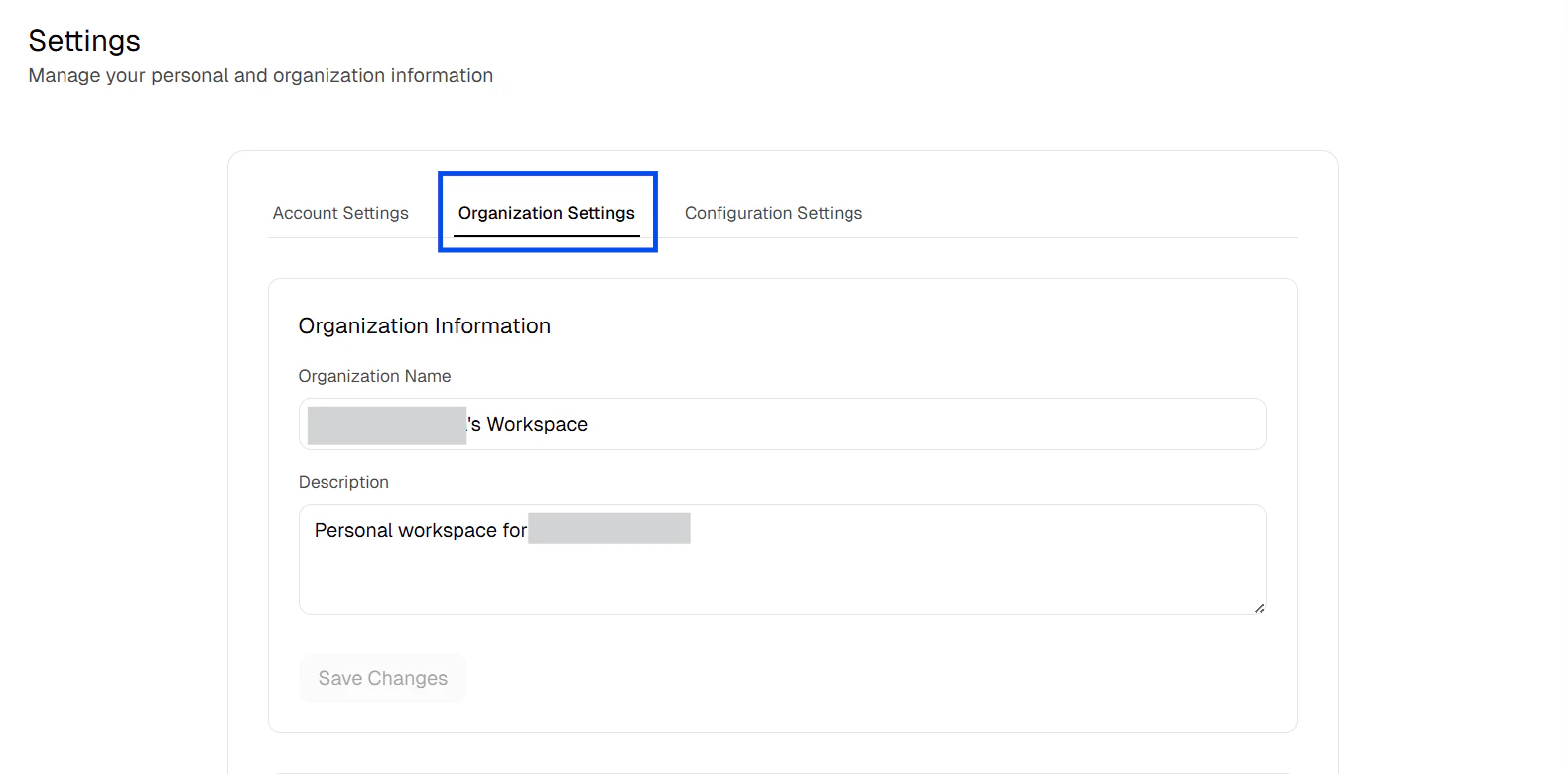
### Organization Information
Admins can update:
* **Organization Name**
* **Description**
Non-admins can view these fields but cannot edit them.
Shows your full name and email address.
### Password
Use this form to update your password.
* **Current Password** is required.
* **New Password** must be at least 8 characters.
* **Confirm Password** must match the new password.
When the update succeeds, the form resets and the page shows a success toast.
### Delete Account
The delete flow depends on how many organizations you own.
* If you do not own any organizations, the account can be deleted immediately.
* If you own one organization and you are the only member, the flow offers **Delete Account & Organizations**.
* If you own organizations with other members, the flow offers **Remove All & Delete Account**.
## Organization Settings
This tab is only editable for organization admins.
### Organization Information
Admins can update:
* **Organization Name**
* **Description**
Non-admins can view these fields but cannot edit them.
 ### Team Members
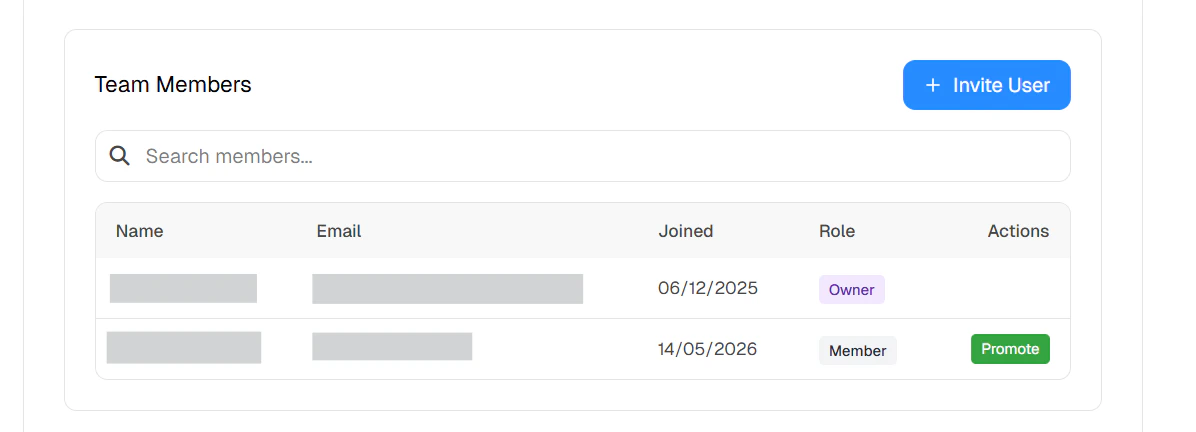 The team members section shows the current members for the selected organization.
* Use **Search members...** to filter by name or email.
* Owners can use **Promote** to upgrade a member to admin.
* Owners can use **Demote** to return an admin to member.
* The current user cannot change their own role from this table.
### Active Invites
The team members section shows the current members for the selected organization.
* Use **Search members...** to filter by name or email.
* Owners can use **Promote** to upgrade a member to admin.
* Owners can use **Demote** to return an admin to member.
* The current user cannot change their own role from this table.
### Active Invites
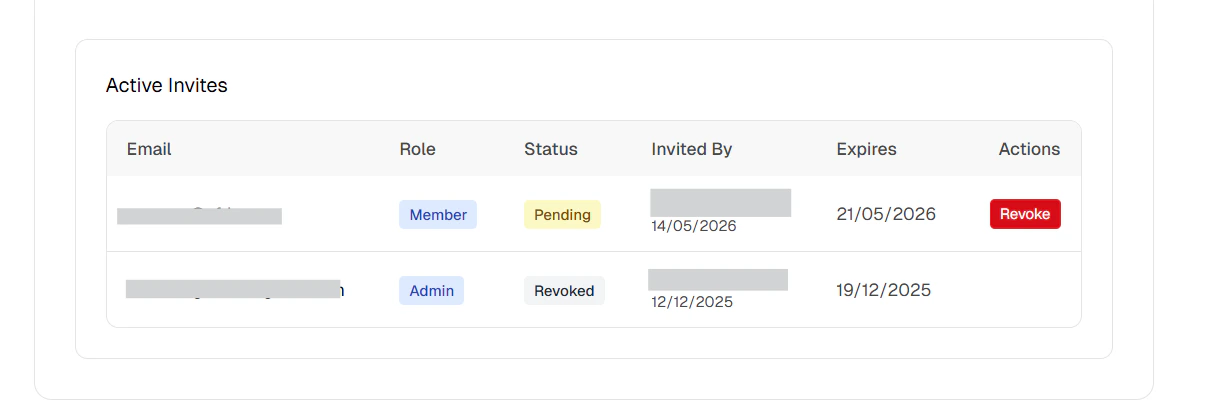 Admins can manage pending invitations for the selected organization.
* The list shows the invitee email, role, status, inviter, and expiration date.
* Pending invites can be revoked.
* Non-admins see a locked state with the message that only organization admins can manage invitations.
* Admins can send new invites with **Invite User**.
## Configuration Settings
This tab contains the insight delivery settings for the selected organization.
Admins can manage pending invitations for the selected organization.
* The list shows the invitee email, role, status, inviter, and expiration date.
* Pending invites can be revoked.
* Non-admins see a locked state with the message that only organization admins can manage invitations.
* Admins can send new invites with **Invite User**.
## Configuration Settings
This tab contains the insight delivery settings for the selected organization.
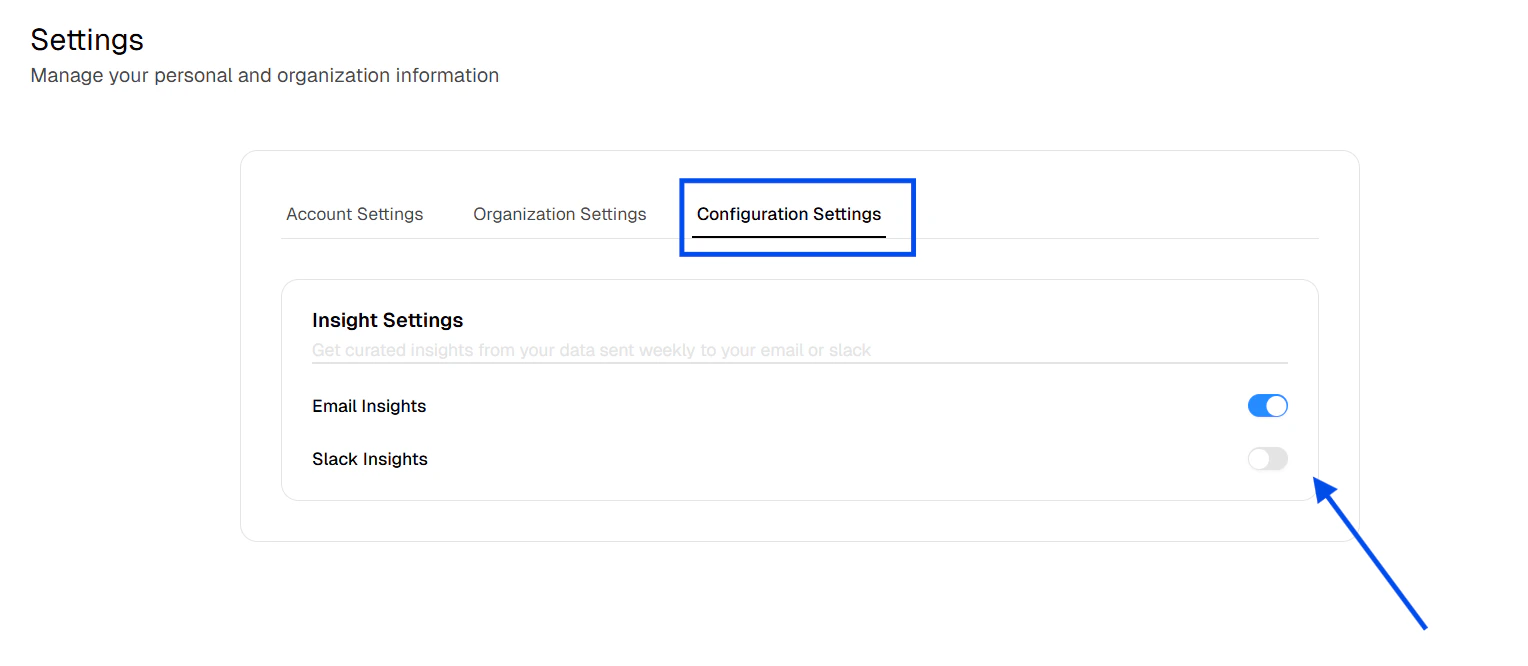 * **Email Insights** toggles insight delivery by email.
* **Slack Insights** toggles insight delivery to Slack.
* Both switches update the organization-level insight configuration for the active organization.
The section is labeled **Insight Settings** in the UI and describes the feature as curated insights sent weekly to email or Slack.
* **Email Insights** toggles insight delivery by email.
* **Slack Insights** toggles insight delivery to Slack.
* Both switches update the organization-level insight configuration for the active organization.
The section is labeled **Insight Settings** in the UI and describes the feature as curated insights sent weekly to email or Slack.