> ## Documentation Index
> Fetch the complete documentation index at: https://docs.dexdata.ai/llms.txt
> Use this file to discover all available pages before exploring further.
# Quickstart
> Get your Dex workspace ready for sources, dashboards, and sharing.
This guide walks you through the first things to do in Dex: open the workspace, confirm access, and prepare for source connections.
## Steps
Go to [dexdata.ai](https://dexdata.ai) and sign in to your account (or sign up if it's your first time).
As the owner of an organization workspace in Dex, you can connect data sources from the **Connections** page.
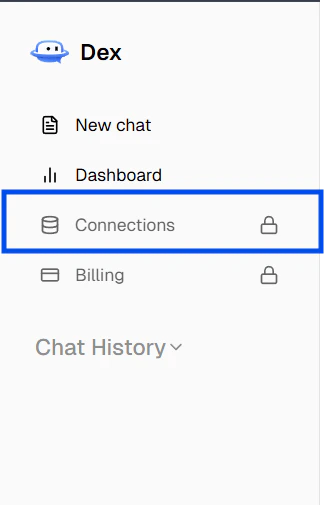
Open the left sidebar and select **Connections** to get to the page.
If the connections tab is locked as shown below, you should reach out to your workspace owner.
 Slack is the only messaging option for now. See [Messaging](/connections/messaging) to connect during onboarding, from the chat interface, or from the **Connections** page.
Start asking Dex about your data from the chat interface or in Slack.
If your source requires approval from IT or a system owner, collect that access before you start the connection flow so you can test it immediately.
## Next steps
* Explore [Connect Dex](/connections/quickstart) to connect your first source.
* Check out [Messaging](/connections/messaging) to connect your messaging platform.
Slack is the only messaging option for now. See [Messaging](/connections/messaging) to connect during onboarding, from the chat interface, or from the **Connections** page.
Start asking Dex about your data from the chat interface or in Slack.
If your source requires approval from IT or a system owner, collect that access before you start the connection flow so you can test it immediately.
## Next steps
* Explore [Connect Dex](/connections/quickstart) to connect your first source.
* Check out [Messaging](/connections/messaging) to connect your messaging platform.