

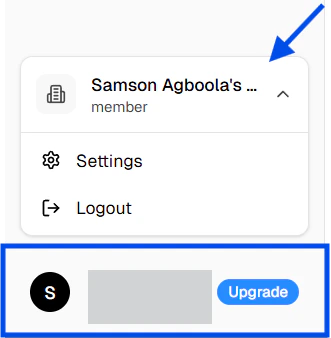
Organization switching
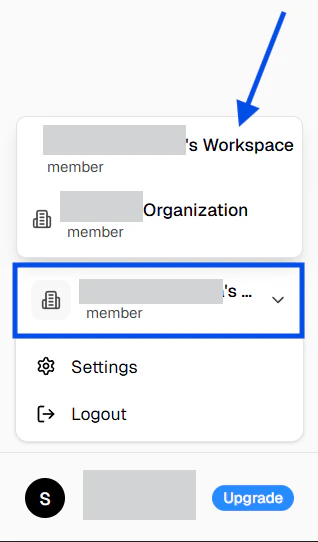
Users who belong to multiple organizations should treat the sidebar organization selector as the source of truth.- Open the settings menu from your profile in the sidebar.
- Choose the organization you want to work in from the dropdown.
- The app updates the selected organization and refreshes permissions for that organization.
Tabs
The page uses a tabbed layout driven by thetab query parameter.
accountopens Account Settings.organizationopens Organization Settings.configurationopens Configuration Settings.
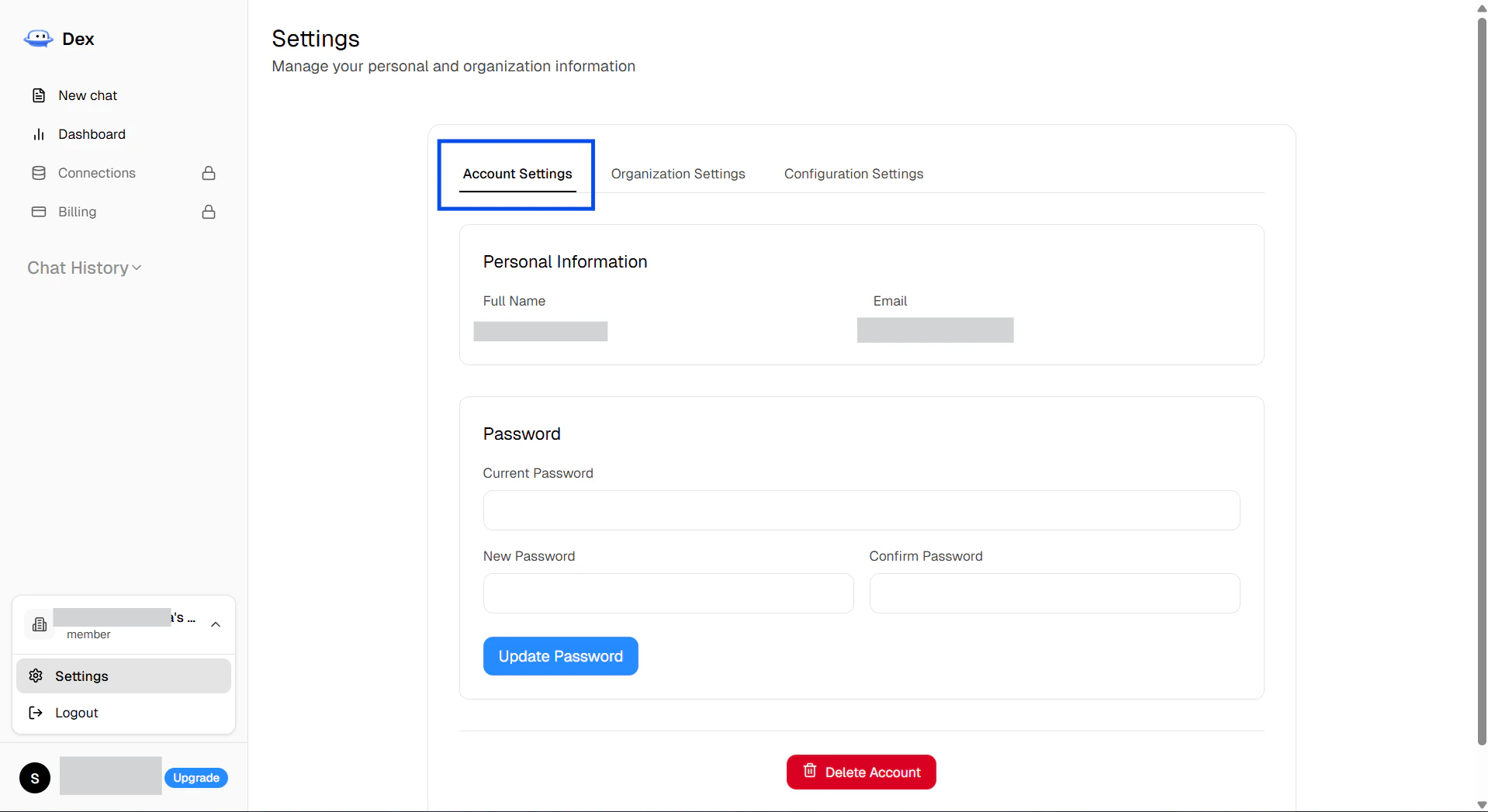
Account Settings
This tab contains your personal account actions.Personal Information
Password
Use this form to update your password.- Current Password is required.
- New Password must be at least 8 characters.
- Confirm Password must match the new password.
Delete Account
The delete flow depends on how many organizations you own.- If you do not own any organizations, the account can be deleted immediately.
- If you own one organization and you are the only member, the flow offers Delete Account & Organizations.
- If you own organizations with other members, the flow offers Remove All & Delete Account.
Organization Settings
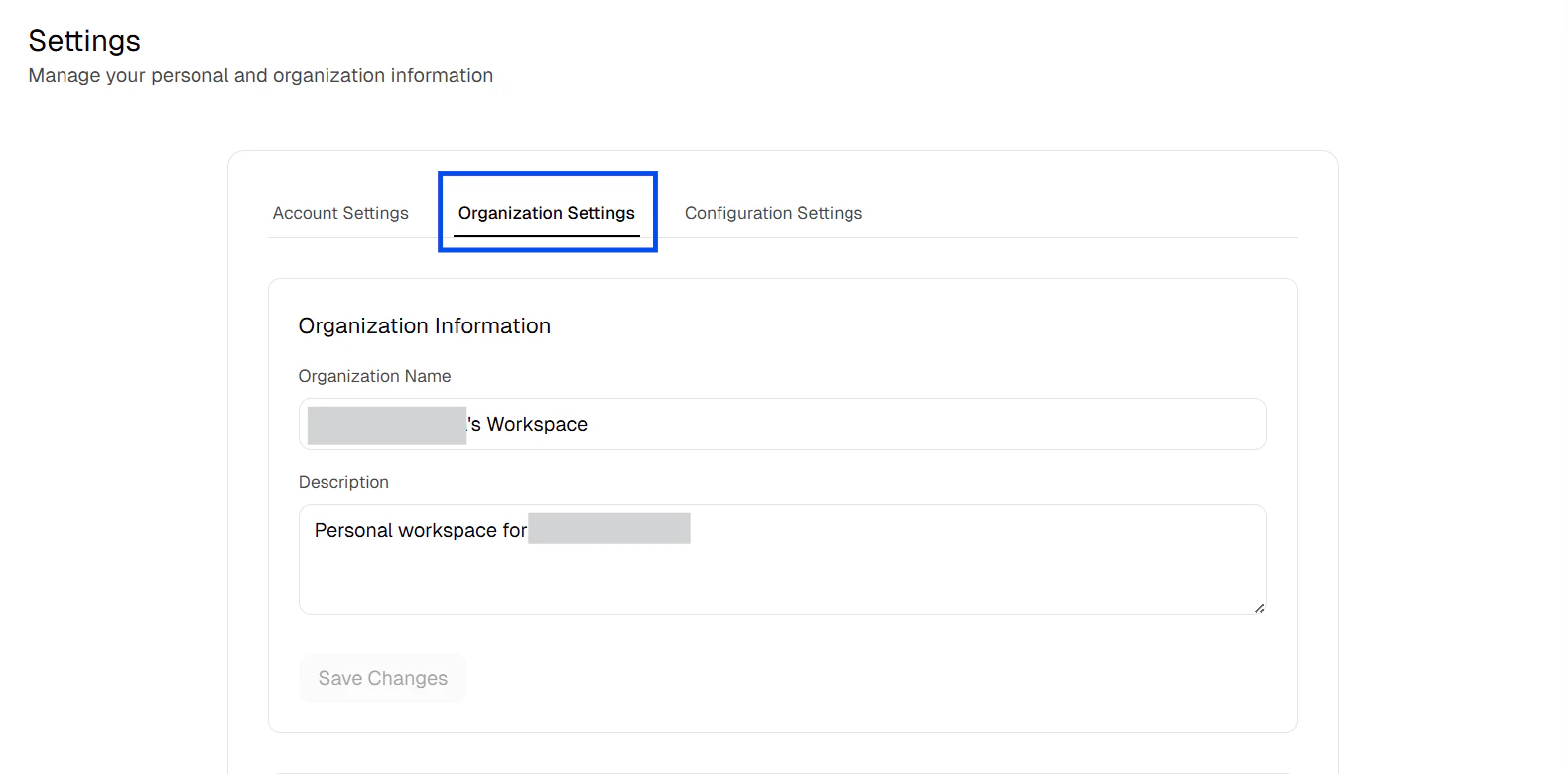
This tab is only editable for organization admins.Organization Information
Admins can update:- Organization Name
- Description
Team Members
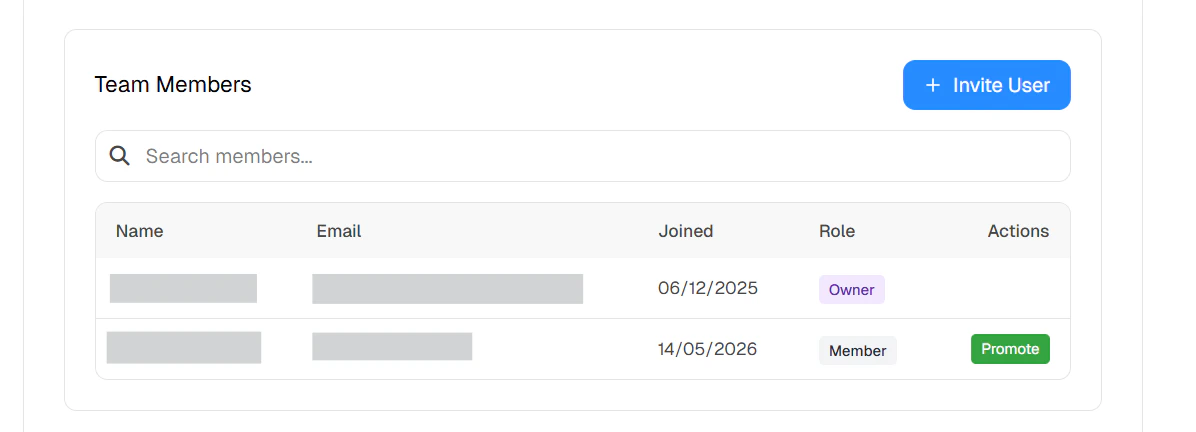
- Use Search members… to filter by name or email.
- Owners can use Promote to upgrade a member to admin.
- Owners can use Demote to return an admin to member.
- The current user cannot change their own role from this table.
Active Invites
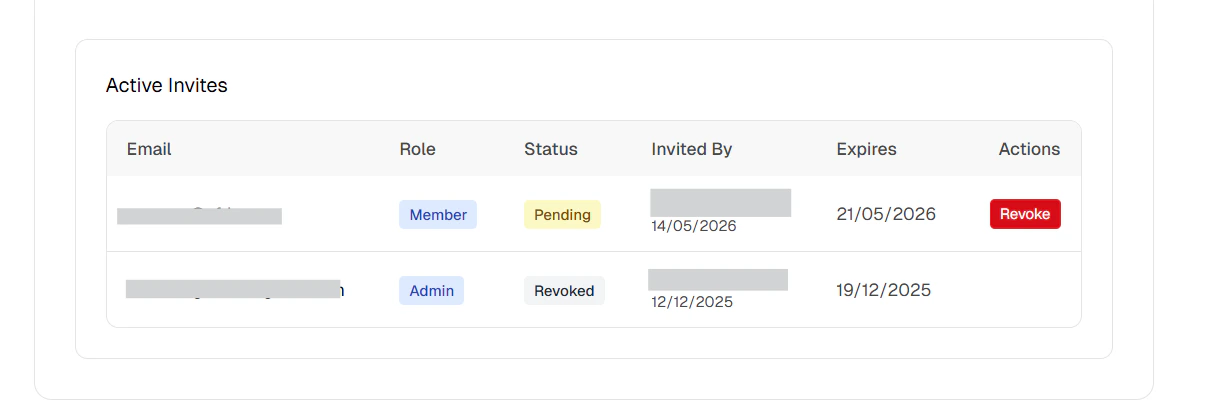
- The list shows the invitee email, role, status, inviter, and expiration date.
- Pending invites can be revoked.
- Non-admins see a locked state with the message that only organization admins can manage invitations.
- Admins can send new invites with Invite User.
Configuration Settings
This tab contains the insight delivery settings for the selected organization.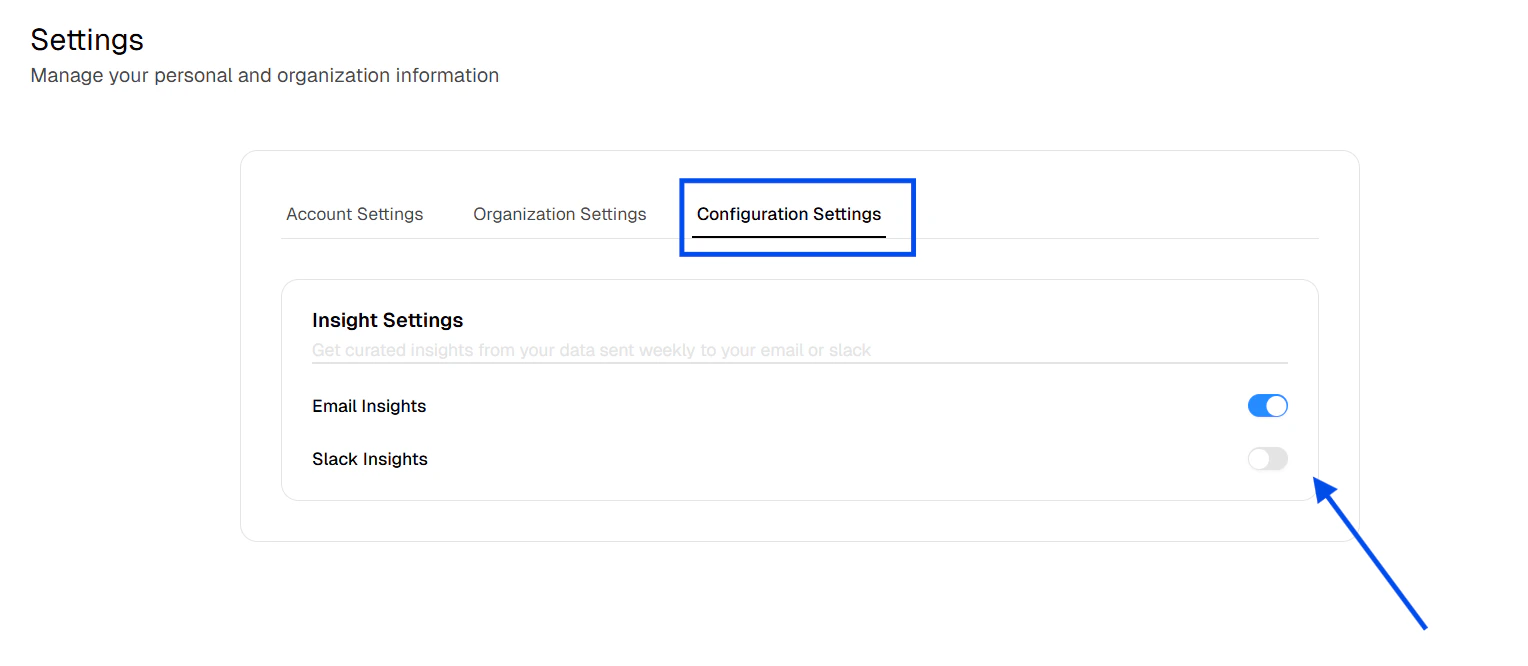
- Email Insights toggles insight delivery by email.
- Slack Insights toggles insight delivery to Slack.
- Both switches update the organization-level insight configuration for the active organization.